
 April 9, 2026
  5 Min
5 Min  No Comment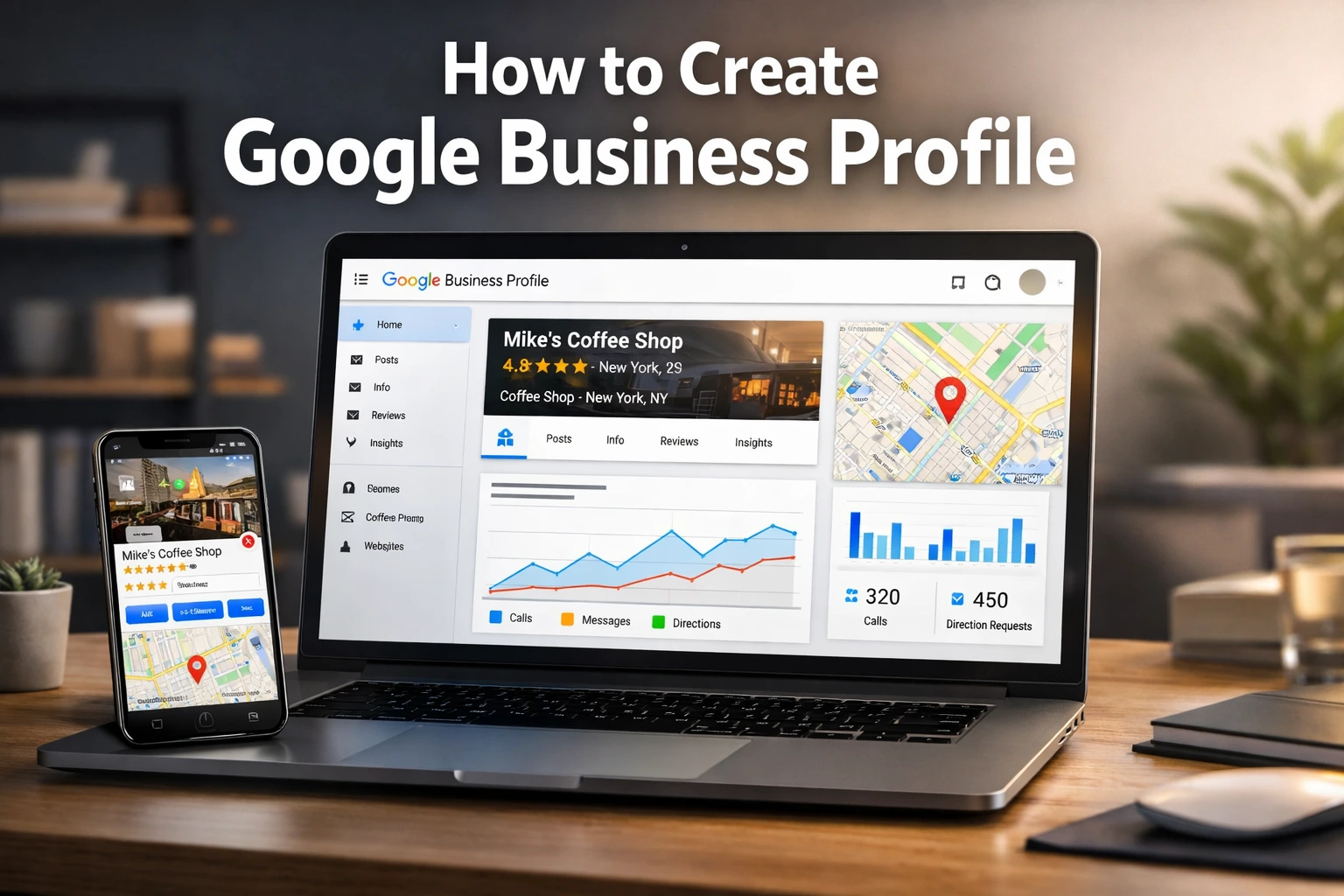
Introduction
If you want your business to appear on Google Search and Google Maps, then creating a Google Business Profile is one of the most powerful steps you can take. Whether you run a small shop, offer services, or manage a startup, this free tool helps you build a strong online presence and attract local customers.
In today’s digital-first world, people search online before visiting any business. A properly optimized business listing not only improves your local SEO but also builds trust through reviews, ratings, and accurate business information.
In this complete guide, you’ll learn how to create a Google Business Profile step by step, how to verify it, and how to optimize it to rank higher in local search results.
What is Google Business Profile?
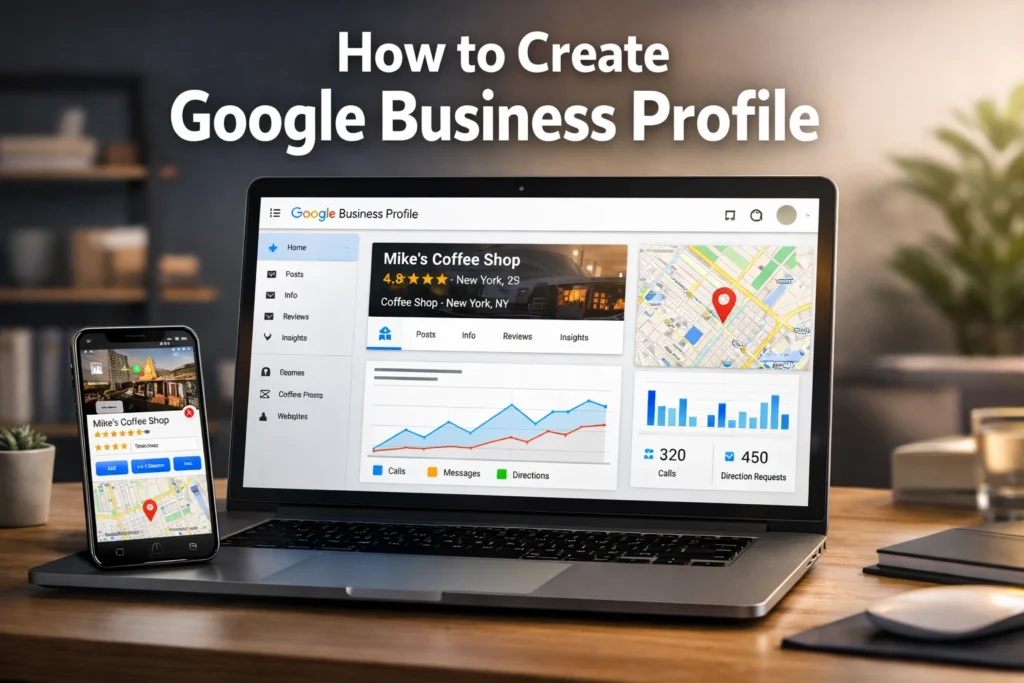
A Google Business Profile is a free business listing that allows you to display your business on Google Search and Google Maps. It includes important details like your business name, address, phone number, website, working hours, and customer reviews.
When an individual looks for nearby services, Google displays local results. Your profile helps your business appear in those results, increasing visibility and engagement.
Who should create it?
- Local businesses (shops, restaurants, offices)
- Service-based businesses (freelancers, agencies, consultants)
- Startups and small businesses
Benefits of Creating a Google Business Profile
Creating a Google Business Profile offers multiple advantages for business growth:
Increased Online Visibility
Your business can appear in Google Search and Google Maps, helping customers find you easily.
Better Local SEO Ranking
A well-optimized profile improves your chances of ranking in local search results.
Customer Trust Through Reviews
Positive ratings and feedback act as trust signals and influence buying decisions.
Free Marketing Tool
You don’t have to spend any money to be included. It’s a completely free business listing platform.
Higher Customer Engagement
Users can call, message, visit your website, or get directions directly from your profile.
Requirements Before Creating a Google Business Profile
Prior to initiating the setup process, ensure you possess the following:
- Business name (consistent across platforms)
- Address or service area
- Phone number
- Email address
- Business category
- Website (optional but recommended)
Make sure your NAP (Name, Address, Phone Number) is accurate and consistent, as it plays a crucial role in local SEO.
How to Create Google Business Profile (Step-by-Step)
Follow these steps carefully to create your Google Business Profile:
Step 1 – Sign in to Your Google Account
Visit the Google Business Profile site and sign in with your Google account. It’s recommended to use your business email for better management.
Step 2 – Provide Your Company Name
Type your business name exactly as it exists in real life. Avoid adding extra keywords unnecessarily, as this may lead to profile suspension.
Step 3 – Choose the Right Business Category
Selecting the correct business category is very important. It helps Google understand your business and show it in relevant searches.
For example:
- Digital Marketing Agency
- Restaurant
- Medical Store
Step 4 – Add Your Location
You will be questioned if you have a physical site that customers can access.
- If yes → Add your full address
- If no → Select service-based business and define your service area
Step 5 – Enter Contact Details
Provide your phone number and website (if available). This enables customers to reach out to you effortlessly.
Step 6 – Verify Your Business
Validation is necessary to activate your profile.
Verification methods include:
- Postcard verification (most common)
- Phone verification
- Email verification
How to Verify Google Business Profile Faster
Verification can sometimes take time, but here are a few tips to speed it up:
- Enter accurate business details
- Use a real and complete address
- Avoid making frequent changes during verification
- Choose phone/email verification if available
If your verification is delayed, check your details and request again.
How to Optimize Google Business Profile for SEO
Creating a profile is just the first step. Optimization is what enables you to achieve a higher rank.
Add Keywords in Business Description
Write a clear and natural business description including relevant keywords like:
- local business listing
- Google Maps listing
- digital marketing services
Avoid keyword stuffing—focus on readability.
Upload High-Quality Photos
Add real images of:
- Your office/shop
- Products or services
- Team
Photos increase engagement and build trust.
Collect Customer Reviews
Encourage happy customers to leave reviews. Reply to each review (whether positive or negative) in a professional manner.
Add Business Hours
Keep your working hours updated to avoid confusion.
Use Google Posts
Post updates, offers, and announcements regularly. This improves engagement signals.
Add Services and Products
Clearly list what you offer. This allows customers to gain a clearer insight into your business.
How to Rank Higher on Google Maps
Ranking on Google Maps depends on multiple factors:
Consistent NAP Information
Your business details should match across all platforms.
Reviews & Ratings
More positive reviews improve credibility and rankings.
Local Backlinks
Get links from local websites and directories.
Engagement Signals
Clicks, calls, and direction requests indicate popularity.
Common Mistakes to Avoid
Avoid these common errors while creating your profile:
- Selecting the wrong business category
- Using inconsistent business information
- Ignoring customer reviews
- Not updating profile regularly
- Adding unnecessary keywords in name
Google Business Profile Tips for Small Businesses
If you’re a small business owner, follow these tips:
- Focus on your local audience
- Use real and authentic images
- Keep your profile updated
- Respond to every review
- Stay active with posts and updates
Consistency is the key to long-term growth.
FAQs
How long does it take to verify Google Business Profile?
It usually takes 3–7 days, but postcard verification may take longer.
Is Google Business Profile free?
Yes, it is completely free to create and manage.
Can I create multiple profiles?
Yes, but only for different businesses or locations.
What if I don’t have a physical address?
You can create a service-area business and hide your address.
How to edit Google Business Profile?
You can edit details anytime from your dashboard after logging in.
Conclusion
Creating a Google Business Profile is one of the easiest and most effective ways to improve your online presence and attract local customers. From setup to optimization, every step plays an important role in boosting your visibility and credibility.
If you follow the steps correctly and keep your profile updated, you can generate more leads, increase engagement, and grow your business organically.
Start today and take advantage of this powerful free tool to dominate local search results.